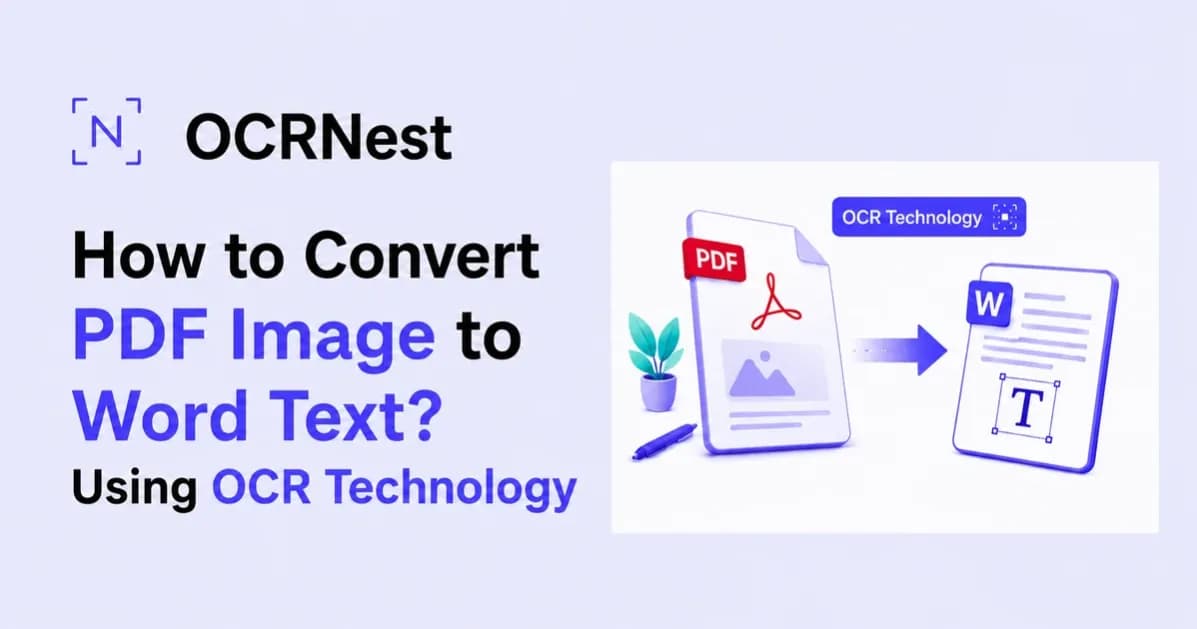
How to Convert PDF Image to Word Text Using OCR Technology
Introduction
PDF files are convenient for sharing documents because they keep the layout consistent across different devices. But they can become frustrating when you need to copy, edit, or reuse the text inside them.
You might open a PDF, try to highlight a sentence, and discover that nothing can be selected. Copy and paste does not work, and searching for a particular word produces no result even though you can clearly see it on the page.
This usually happens when the PDF contains scanned pages rather than actual digital text.
Fortunately, you do not have to type everything manually. With OCR technology and tools such as a PDF to text converter or image to text converter, you can extract text from scanned documents and move it into Microsoft Word within minutes.
In this guide, we will explain how to convert PDF image to Word text, when to use PDF-to-text conversion, when image-to-text extraction makes more sense, and how OCR helps both methods work.
Why Can't You Copy Text from Some PDFs?
Two PDF files can look almost identical while working very differently behind the scenes.
A PDF created directly from Microsoft Word, Google Docs, or another document editor usually contains actual digital characters. That means you can highlight sentences, copy paragraphs, search for words, and sometimes edit the content.
A scanned PDF is different.
Suppose someone has a printed contract, scans every page, and saves the scans as a PDF. The resulting file may look exactly like a normal digital document, but each page can simply be an image.
To a person, the words are obvious.
To a computer, however, the page may initially be nothing more than a collection of pixels.
That is why you cannot always select or copy its text. Before the information can be edited in Word, the characters inside those images need to be recognized.
This is the job of OCR.
What Is OCR Technology?
OCR stands for Optical Character Recognition.
It is a technology used to detect letters, numbers, punctuation, and other characters inside images or scanned documents and convert them into machine-readable text.
Imagine you have a scanned invoice containing this line:
Total Amount: $1,250.00
Without OCR, the computer may simply see that entire line as part of a picture.
OCR analyzes the shapes in the image, recognizes that those shapes represent letters and numbers, and converts them into actual text:
Total Amount: $1,250.00
Once this happens, the content can be copied, searched, edited, saved, or pasted into Microsoft Word.
OCR is the technology behind many PDF to text and image to text tools.
The main difference between the two is simply the type of file you start with.
PDF to Text Converter vs. Image to Text Converter
Both tools can help you get editable text from a document, but they are useful in slightly different situations.
PDF to Text Converter
A PDF to text converter is usually the easiest option when you already have the complete PDF file.
Instead of converting each page into an image yourself, you upload the PDF directly. The converter analyzes the document and extracts the text.
If the PDF contains normal digital text, extraction is relatively straightforward.
If the PDF contains scanned pages, an OCR-enabled PDF to text converter can recognize the text inside those page images before extracting it.
This option is especially useful for:
- Scanned reports
- Multi-page PDF documents
- Research papers
- PDF invoices
- Digital books
- Contracts
- Archived documents
- Business records
For example, if someone sends you a 15-page scanned PDF and you need the text from most of those pages, using a PDF to text converter is generally more practical than processing every page separately.
Image to Text Converter
An image to text converter is more useful when your source is already an image.
You may have:
- A screenshot of a PDF page
- A JPG exported from a PDF
- A photo of a printed document
- A PNG containing text
- A scanned page saved as an image
Instead of first creating a PDF, you can upload the image directly and let OCR extract the visible text.
This is particularly convenient when you only need information from one page or a small section of a larger PDF.
Suppose you have a 100-page PDF but only need a paragraph from page 42. Rather than converting the entire document, you could capture that page or section as an image and use an image to text converter.
So neither tool is necessarily better in every situation.
If you have the full PDF, use a PDF to text converter.
If you have an image, screenshot, or individual scanned page, use an image to text converter.
Both approaches can eventually give you editable text that you can place into Word.
How to Convert a PDF Image to Word Text
The process depends slightly on what type of file you currently have.
Method 1: Use a PDF to Text Converter
If the scanned document is already available as a PDF, this is usually the simplest route.
Step 1: Upload Your PDF
Open a PDF to text converter and upload the document you want to process.
Before uploading, it is worth checking whether the file actually requires OCR. Open the PDF and try highlighting a few words.
If you can select the text normally, the PDF already contains digital text.
If the page behaves like one large image, OCR will probably be required.
Step 2: Let the Tool Extract the Text
The converter processes the document and looks for readable content.
With scanned PDFs, OCR technology examines the images on each page and attempts to identify the characters.
Depending on the document, it may recognize paragraphs, headings, numbers, dates, and other visible information.
Step 3: Review the Extracted Content
Do not immediately assume that every character has been recognized perfectly.
Check names, numbers, addresses, dates, financial figures, and unusual words carefully.
OCR accuracy is generally much better on clear scans than on blurry or low-resolution documents.
Step 4: Copy the Text into Word
Once the text has been extracted, copy the required content.
Open Microsoft Word and paste it into a new document.
You can then restore headings, adjust paragraph spacing, change fonts, fix formatting, and make any necessary corrections.
Finally, save the document as a DOCX file.
Method 2: Use an Image to Text Converter
Sometimes you do not need the entire PDF.
Maybe you took a screenshot of one page, exported a page as JPG, or photographed a printed document with your phone.
In that case, image-to-text extraction may be faster.
Step 1: Prepare the Image
Use a clear JPG, JPEG, PNG, or another supported image format.
If you are taking a photo yourself, make sure:
- The page is in focus
- Lighting is even
- Text is clearly visible
- The page is reasonably straight
- There is no glare covering the words
A better image gives OCR more information to work with.
Step 2: Upload It to an Image to Text Tool
Upload the image to an OCR-powered image to text converter.
The tool analyzes the visual content and attempts to recognize the words displayed inside the image.
This can work with screenshots, photographed pages, scanned documents, receipts, notes, and many other types of images containing text.
Step 3: Check the Extracted Text
Read through the result.
Pay particular attention to similar-looking characters.
For example:
- 0 and O
- 1, I, and l
- 5 and S
- 8 and B
These can occasionally be confused when the original image is blurry or uses an unusual font.
Step 4: Paste the Result into Microsoft Word
Copy the extracted text and paste it into Word.
You can now edit the information normally instead of treating it as part of an image.
Which Method Should You Choose?
A simple way to decide is to look at the file you already have.
If you have a complete PDF and need text from multiple pages, a PDF to text converter is normally the better choice.
If you have a screenshot, photograph, JPG, PNG, or only need text from one particular page, an image to text converter may be more convenient.
For example, imagine you have a 40-page scanned business report.
If you need almost all of the report, processing the PDF directly makes sense.
But if you only need one table from page 17, taking that page as an image and extracting its text separately may save time.
Both workflows rely on the same basic OCR principle: turning text that appears visually inside a document into characters a computer can actually work with.
Why Use OCR Instead of Typing Everything Manually?
Manual typing works, but it becomes inefficient very quickly.
Retyping three words is easy.
Retyping a ten-page scanned document is not.
Apart from taking time, manual data entry creates opportunities for errors. You can accidentally skip a sentence, enter the wrong figure, repeat a line, or miss punctuation.
OCR handles most of the initial conversion automatically.
Instead of spending your time reproducing every word, you can concentrate on checking the result and correcting the small number of mistakes that may remain.
This can be especially useful for students, researchers, office workers, businesses, teachers, writers, and anyone who regularly handles scanned documents.
What Affects OCR Accuracy?
OCR has improved significantly, but the quality of the original document still matters.
Image Quality
A sharp image allows the OCR system to distinguish the edges of letters more accurately.
Very compressed or pixelated files can lead to more recognition errors.
Resolution
Higher-resolution scans generally contain more detail.
If you have access to both a low-quality screenshot and the original PDF, using the original document will normally produce better results.
Page Rotation
Text is easier to recognize when the document is positioned correctly.
If the page is sideways or heavily tilted, rotate or straighten it before processing.
Lighting
This mainly applies to photographs.
Strong shadows, reflections, and glare can hide parts of letters. Try to photograph the page under even lighting.
Font Style
Standard printed fonts are usually easier to process.
Decorative typography, extremely small text, faded printing, or unusual character styles can make recognition more difficult.
Document Condition
Old documents may contain stains, folds, torn areas, faded ink, or handwritten markings.
OCR can still be useful, but such pages may require additional proofreading.
What About Formatting?
Extracting the words from a PDF and rebuilding its exact appearance are two different challenges.
A simple OCR tool may correctly extract all the text but not reproduce the original formatting.
For example, your source PDF might contain:
- Two-column layouts
- Tables
- Headers and footers
- Page numbers
- Different fonts
- Charts
- Text boxes
- Images
- Signatures
Basic text extraction may return the information as paragraphs without preserving all of that structure.
If your goal is simply to edit or reuse the words, this is often perfectly fine. You can paste the content into Word and format it according to your needs. Once you have reviewed and formatted the extracted content, you can also use a Text to PDF converter to turn the cleaned text into a PDF for saving, printing, or sharing.
If you need an almost identical copy of the original document, you may need more advanced OCR or PDF-to-Word software that supports layout recognition.
Practical Situations Where These Tools Help
PDF-to-text and image-to-text conversion can be useful in everyday situations.
A student may receive a scanned chapter and want to extract a few paragraphs for study notes.
An office worker may need information from a scanned report without manually retyping it.
An accountant may receive an invoice as a PDF image and need to copy figures into another document.
A researcher may find an old scanned publication whose text cannot be searched.
Someone working from a phone may simply take a picture of a printed page and turn it into editable text.
The source files are different, but the underlying problem is the same: useful information is trapped inside an image.
OCR makes that information accessible.
Should You Convert the Whole PDF?
Not always.
If you have a large document, consider exactly what information you need.
For a 60-page PDF where every page matters, using a PDF to text converter is logical.
If you only need a few lines from one page, processing the complete file may create unnecessary work.
You could instead export or capture the relevant page and run it through an image to text converter.
Choosing the right method makes the process faster and leaves you with less unwanted text to remove afterward.
Be Careful with Sensitive Documents
Online OCR tools are convenient, but document privacy should not be ignored.
Before uploading confidential material, consider what the document contains.
You should be especially careful with files containing:
- Customer information
- Bank details
- Passwords
- Medical records
- Private contracts
- Confidential company information
- Personal identification documents
For sensitive files, check the privacy and data-retention policies of the service you intend to use. In some situations, an approved offline or internal OCR solution may be more suitable.
PDF to Text or Image to Text: The Final Difference
The easiest way to remember the difference is this:
A PDF to text converter works directly with a PDF file and is particularly useful when you need content from several pages.
An image to text converter extracts text from image files and is ideal for screenshots, photos, JPGs, PNGs, or individual PDF pages saved as images.
Both can use OCR when the original content is not already available as selectable digital text.
After extraction, the final workflow is almost identical: review the text, copy it into Microsoft Word, correct any mistakes, format the document, and save it.
Final Thoughts
Understanding how to convert PDF image to Word text using OCR technology can save a great deal of unnecessary typing.
If the document is available as a complete PDF, a PDF to text converter can help extract the content directly. This is especially convenient for scanned reports, books, contracts, invoices, and other multi-page files.
When the content is available as a screenshot, photograph, JPG, PNG, or individual scanned page, an image to text converter provides a more direct solution.
Both methods become particularly powerful when OCR is involved. OCR recognizes the characters that are visually present inside the document and turns them into text that can be copied, searched, edited, and placed into Word.
The best approach ultimately depends on what you are starting with. Use PDF-to-text conversion when you have the PDF itself, and image-to-text extraction when your content is already in image form.
Either way, information that once seemed locked inside a scanned document can become editable text without having to retype the entire page by hand.