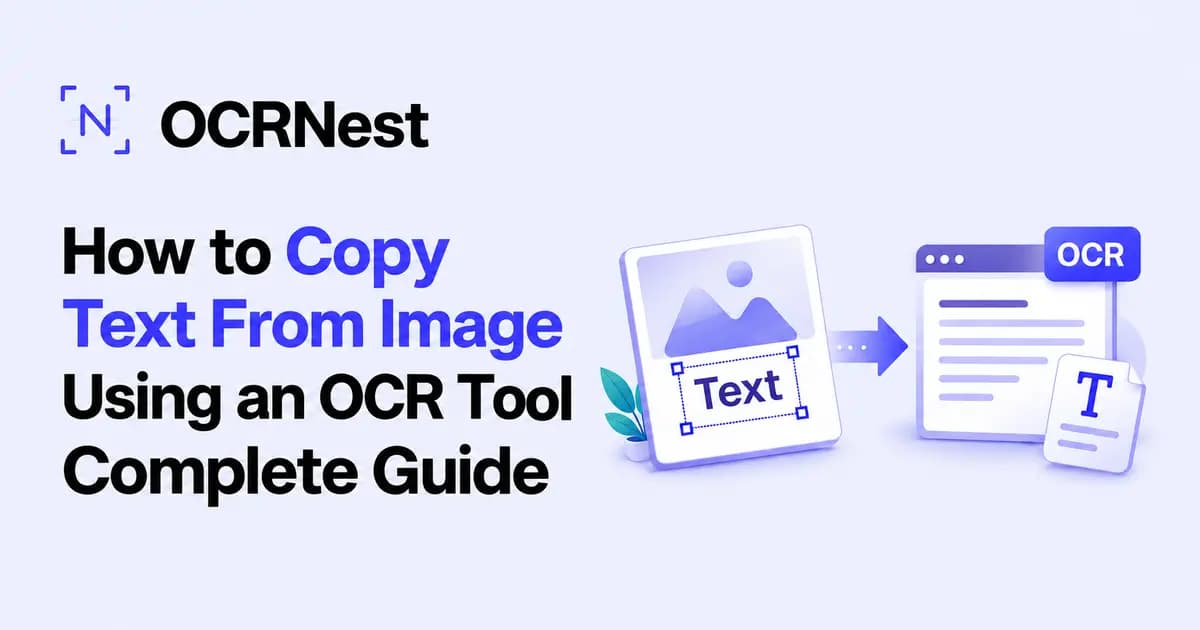
How to Copy Text From Image Using an OCR Tool: Complete Guide
Have you ever received a screenshot containing useful information but couldn't select or copy the words inside it? Or maybe you took a picture of a document, book page, receipt, or handwritten note and later realized you needed the text in an editable format.
Typing everything manually works, but it quickly becomes frustrating when an image contains several paragraphs.
The easier solution is OCR.
If you're wondering how to copy text from image files without retyping everything, OCR technology can recognize the words inside a picture and convert them into normal, editable text.
With OCRNest.com's Image to Text Converter, you can upload an image containing text, extract the written content, and then copy it for use in documents, notes, emails, assignments, articles, and many other places.
In this guide, we'll explain how image-to-text conversion works, how to copy text from pictures using OCRNest, where OCR is useful, and what you can do to improve extraction accuracy.
How to Copy Text From Image Quickly
The basic process is surprisingly simple.
When text is stored inside a normal document or webpage, you can usually highlight it with your cursor and copy it. But when those same words are part of an image, your device may treat everything as a single visual file.
That is where an image to text converter becomes useful.
Using OCRNest, the process looks like this:
- 1.Open the OCRNest Image to Text Converter.
- 2.Upload the image containing the text you want to extract.
- 3.Start the OCR conversion.
- 4.Let the tool recognize the text inside the image.
- 5.Review the extracted content.
- 6.Copy the text and use it wherever you need it.
Instead of spending several minutes manually typing a paragraph, OCR can handle the initial extraction for you.
What Is OCR?
OCR stands for Optical Character Recognition.
It is a technology designed to identify written or printed characters inside images and transform them into machine-readable text.
To understand why this matters, think about the difference between a normal paragraph and a screenshot of that paragraph.
A computer understands a normal paragraph as individual letters, spaces, numbers, punctuation marks, and words. That is why you can highlight a sentence, copy it, search for a specific word, or edit the content.
A normal image does not necessarily contain this information as editable characters. It may simply contain pixels that happen to look like words to the human eye.
OCR analyzes those visual patterns and attempts to determine which characters they represent.
For example, if an image contains:
Meeting scheduled for Monday at 11:30 AM
OCR analyzes the shapes in the image and converts them into actual digital text. You can then select, copy, edit, save, or reuse that sentence.
This simple concept is what makes OCR extremely useful for screenshots, scanned documents, photographs, notes, receipts, book pages, and other image-based content.
How to Copy Text From Image Using OCRNest
Let's look at the process more closely.
Step 1: Open OCRNest Image to Text Converter
Start by opening OCRNest.com's Image to Text Converter in your browser.
Because the conversion happens through an online interface, you don't need to manually create a new document and type the content from the picture yourself.
Step 2: Upload Your Image
Choose the image containing the text you want to copy.
This might be:
- A screenshot
- A photograph of a document
- A scanned page
- A receipt
- A book page
- A classroom note
- A business document
- An image downloaded from the web
- A picture containing printed information
The clearer the image is, the easier it is for OCR technology to identify the characters.
Step 3: Extract the Text
Once the image has been uploaded, start the conversion.
OCRNest analyzes the image and recognizes the visible text.
Instead of treating the words as part of the picture, OCR converts them into editable characters.
Step 4: Review the Extracted Text
Before using the result, compare it briefly with the original image.
OCR can dramatically reduce manual work, but proofreading is still important, particularly when your image contains:
- Phone numbers
- Dates
- Prices
- Names
- Email addresses
- Reference numbers
- Technical terminology
- Financial information
A small recognition error can completely change a number or name, so important information should always be checked.
Step 5: Copy the Text
Once you're satisfied with the extracted content, copy it and paste it wherever you need it.
For example, you might paste it into:
- A document
- An email
- A note
- A blog post
- An assignment
- A report
- A messaging application
- A spreadsheet
- A content management system
What started as inaccessible text inside an image is now editable content.
Why Copy Text From an Image Instead of Typing It?
The biggest advantage is time.
Imagine receiving an image containing three full paragraphs.
You have two options.
You can keep looking at the image while manually typing each line into another document, or you can extract the text using OCR and spend your time reviewing the result instead.
The difference becomes even more noticeable with longer documents.
Manual typing also introduces errors. When people copy information by hand, they can easily skip a sentence, repeat a word, enter the wrong number, or accidentally change punctuation.
OCR does not eliminate the need for proofreading, but it can remove most of the repetitive work.
For anyone who regularly handles screenshots or scanned content, those saved minutes quickly add up.
How to Copy Text From a Screenshot
Screenshots are among the most common reasons people need image-to-text conversion.
Suppose someone sends you a screenshot containing:
- An address
- A long error message
- Instructions
- A product description
- Contact details
- A social media caption
- A paragraph from a webpage
- Meeting information
The content is perfectly readable, but you might not be able to select it normally.
Instead of typing the information manually, upload the screenshot to OCRNest's Image to Text Converter.
OCR recognizes the visible characters and provides editable text that you can copy.
Screenshots can also work particularly well with OCR because their text is often sharper than text captured through a camera.
How to Copy Text From a Photo
The same process works when the source is a photograph rather than a screenshot.
For example, imagine you're reading a printed book and find a paragraph you want to save in your personal notes.
You could type it manually.
Or you could take a clear photograph, upload that image to OCRNest, extract the text, and then copy the relevant section.
This can be useful for:
- Printed notes
- Posters
- Notices
- Textbooks
- Business documents
- Product packaging
- Receipts
- Menus
- Forms
- Printed instructions
The important factor is image quality.
A clear, well-lit photograph will usually give OCR technology a much better starting point than a dark, blurry, or heavily angled image.
How to Get Better OCR Results
OCR technology can save a lot of time, but input quality still matters.
Here are several ways to make your images easier to process.
Use a Clear Image
Avoid heavily blurred photographs.
If you're taking a new picture specifically for text extraction, make sure your camera has focused properly before capturing the image.
Keep the Document Straight
Photographs taken from extreme angles can distort letters and lines.
Whenever possible, position your camera directly above or in front of the document.
Make Sure the Text Is Large Enough
Tiny text can be difficult to recognize.
If the important text only covers a small area of the image, crop the unnecessary surroundings before processing it.
Avoid Shadows and Glare
Glare from lights can make parts of a page unreadable.
This is especially common when photographing glossy paper, laminated documents, screens, or packaging.
Try changing your position or lighting until the text is clearly visible.
Use Good Contrast
Dark text against a light background is usually easier to recognize than decorative text placed over a detailed photograph.
The clearer the difference between the characters and their background, the easier the recognition process becomes.
Proofread Important Details
Even with an excellent image, always check information where a single wrong character could matter.
Pay special attention to numbers and similar-looking characters.
For example:
- 0 and O
- 1, I, and l
- 5 and S
- 8 and B
These characters may appear similar depending on the font and image quality.
What Types of Images Can Contain Extractable Text?
OCR isn't limited to traditional scanned documents.
Text can appear inside many types of images.
Screenshots
These might contain conversations, website content, product information, social media posts, error messages, or application interfaces.
Document Photos
Instead of using a scanner, many people simply photograph printed documents with their phones.
OCR allows that photographed text to become editable again.
Scanned Documents
A scanned page may look like a normal document, but it can sometimes effectively be an image rather than selectable text.
OCR can recognize the words inside the scanned page.
Book and Study Material
Students can use image-to-text conversion to digitize passages from printed material and organize useful information inside their study notes.
Receipts and Printed Records
Information contained in receipts and other printed records can be difficult to reuse manually.
OCR can help turn visible text into editable content.
Can You Copy Text From JPG and PNG Images?
Yes.
JPG and PNG are among the most common image formats people work with.
JPG files are frequently produced by cameras, making them common for photographs of documents, printed pages, signs, and receipts.
PNG files are especially common for screenshots and digital graphics.
With an image-to-text workflow, the important thing isn't simply the extension of the image. The quality and readability of the text inside the image matter much more.
Upload the image to OCRNest's Image to Text Converter, process it with OCR, and review the extracted content.
Can OCR Read Handwritten Text?
Handwriting is more challenging than printed text.
Printed fonts generally follow predictable shapes and spacing. Human handwriting varies enormously from person to person.
Some people write clearly and consistently. Others connect letters, overlap words, use unusual abbreviations, or write characters differently each time.
As a result, handwritten text extraction can depend heavily on:
- Handwriting clarity
- Image resolution
- Lighting
- Letter spacing
- Background cleanliness
- Camera angle
OCRNest also provides OCR-based functionality for working with handwriting, making it useful when text isn't neatly typed or printed.
For the best results, use a sharp image and make sure the handwritten content is clearly visible.
Can You Copy Text From an Image on Your Phone?
Yes.
One of the advantages of using an online image-to-text converter is that you don't necessarily need to move the image to a desktop computer first.
For example, imagine you're standing in front of a printed notice.
You can take a photograph with your phone, open OCRNest in your browser, upload the picture, extract the text, and then copy the information.
That workflow can be useful when you're away from your computer and need information quickly.
Who Can Benefit From an Image to Text Converter?
Almost anyone occasionally encounters text trapped inside an image, but some groups can benefit especially often.
Students
Students frequently work with photographs of whiteboards, textbook pages, handwritten notes, assignments, and presentation slides.
Instead of manually rewriting long passages, they can extract the text and organize it inside their study material.
Writers and Bloggers
Writers may receive quotes, research notes, or information as images.
OCR can help convert those sources into editable drafts without repetitive typing.
Office Workers
Scanned documents, screenshots, receipts, and photographs are common in everyday office communication.
Being able to quickly extract text makes it easier to reuse information.
Researchers
Researchers may need to digitize information from old documents, archived materials, or scanned pages.
OCR reduces the amount of transcription required.
Businesses
Companies regularly deal with documents containing names, addresses, reference numbers, descriptions, and other useful text.
OCR can speed up the process of moving that information into editable digital formats.
Everyday Users
You don't need to work with hundreds of documents to benefit from OCR.
Sometimes you simply need to copy a Wi-Fi instruction, address, recipe, product description, quotation, or paragraph from an image.
That's enough to make an image-to-text converter useful.
Is OCR 100% Accurate?
No OCR system should be assumed to produce perfect results in every situation.
Recognition accuracy depends heavily on the source image.
A clean digital screenshot with large, clear text is very different from a blurry photograph of a handwritten page taken in poor lighting.
Factors that may affect extraction include:
- Blurry images
- Very small text
- Decorative fonts
- Unusual characters
- Poor lighting
- Low contrast
- Page rotation
- Handwriting
- Complex backgrounds
- Damaged documents
That's why reviewing the extracted text is an important part of the workflow.
Think of OCR as a way to handle repetitive transcription work quickly. A short proofreading pass then helps ensure that the final content matches the original image.
Is It Safe to Copy Text From Images Online?
Online OCR is useful because it makes text extraction convenient, but you should still think about what you're uploading.
For normal notes, screenshots, general documents, and non-sensitive images, online conversion is often a practical solution.
More caution is appropriate when dealing with highly sensitive information.
Before uploading confidential business records, financial information, identity documents, passwords, medical information, or other private files to any online service, review its privacy and data-handling policies.
The same principle applies to any online document-processing platform.
Image-to-Text OCR vs Manual Typing
For a very short sentence, typing it yourself may be faster.
But the longer the text becomes, the more valuable OCR becomes.
Imagine that a photograph contains 500 words.
Manually typing those 500 words requires concentration and time. After typing everything, you'll probably still need to proofread it.
OCR can perform most of that transcription first. Your job becomes checking and correcting the extracted result instead of creating it from scratch.
That is a much more efficient workflow.
A simple rule is:
A few words? Type them.
Several paragraphs? Use OCR.
Frequently Asked Questions
How do I copy text from an image?
The easiest approach is to use an OCR image-to-text converter. Upload the image to OCRNest's Image to Text Converter, process it, review the extracted content, and then copy the text you need.
How can I copy text from a picture without typing?
OCR technology recognizes the characters inside the picture and converts them into editable text. This allows you to copy the information instead of typing it manually.
How do I copy text from a screenshot?
Save the screenshot and upload it to OCRNest's Image to Text Converter. Run the OCR process and copy the resulting text after checking it against the original screenshot.
Can I extract text from a photo?
Yes. A clear photograph containing readable text can be processed with OCR to produce editable content.
Can I copy text from JPG images?
Yes. JPG photographs containing visible text can be processed using an OCR image-to-text converter.
Can I extract text from PNG images?
Yes. PNG files, particularly screenshots, are commonly used with OCR because the text in them can be very clear and sharp.
Can I copy handwritten text from an image?
OCR can also be used for handwriting, although accuracy depends greatly on how clearly the text is written and photographed.
Can I use OCR on my phone?
Yes. A browser-based OCR service such as OCRNest can be useful when you want to upload an image directly from your phone and extract the text.
Why can't I normally copy text from an image?
An image usually stores visual pixels rather than individual editable characters. OCR recognizes those visual characters and converts them into digital text that can be selected and copied.
What is the easiest way to extract text from an image?
For most everyday situations, uploading the picture to OCRNest's Image to Text Converter is a straightforward option. Let OCR process the image, review the output, and copy the extracted text.
Final Thoughts
Learning how to copy text from image files can save you from hours of unnecessary typing over time.
Screenshots, photographed documents, receipts, scanned pages, book passages, study material, and other images often contain information you want to reuse. The problem is that the words may be visible without being selectable.
OCR solves that problem by converting visible characters into editable digital text.
With OCRNest.com's Image to Text Converter, the workflow is simple: upload your image, let OCR recognize the content, check the result, and copy the text.
The better your original image is, the better your chances of getting a clean extraction. Use clear photographs, avoid glare, keep text straight and readable, and always proofread important numbers or names.
Most importantly, don't spend ten minutes manually retyping information that already exists in front of you.
When text is trapped inside an image, OCR can help you get it back into a form you can actually use.